

How to Create Instagram Reels for Epic IG Edits: The Ultimate Guide
Instagram Reels are the lifeblood of the platform right now, and the “IG Edit” community (golf, movies, gaming, sports, and fashion edits) is one of the most vibrant, fast-growing niches. If you want to transform your stunning edits into viral Reels that rack up views, saves, and followers, you need an SEO-forward strategy alongside your creative talent. We are talking about short form video editing which often looks like catchy vertical videos that are under 60 seconds on instagram or tik tok.
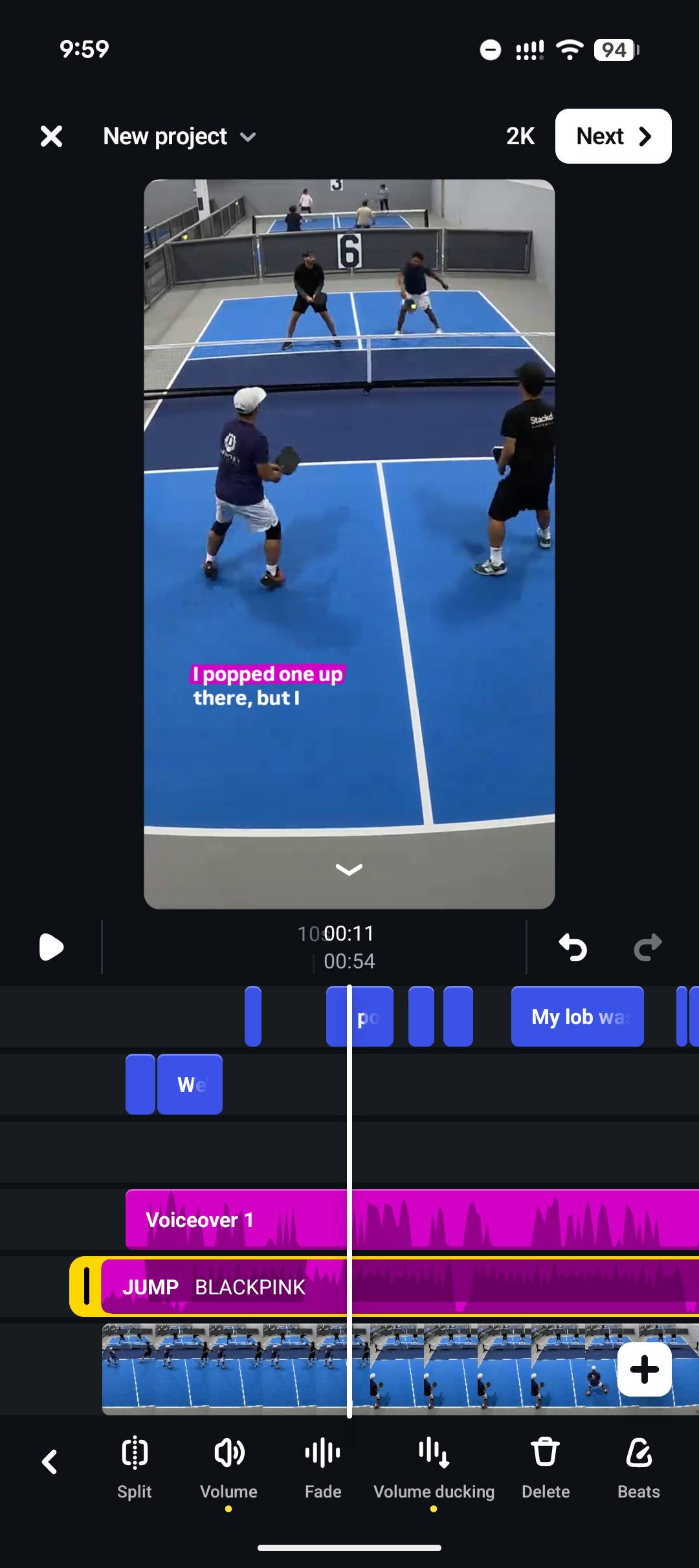
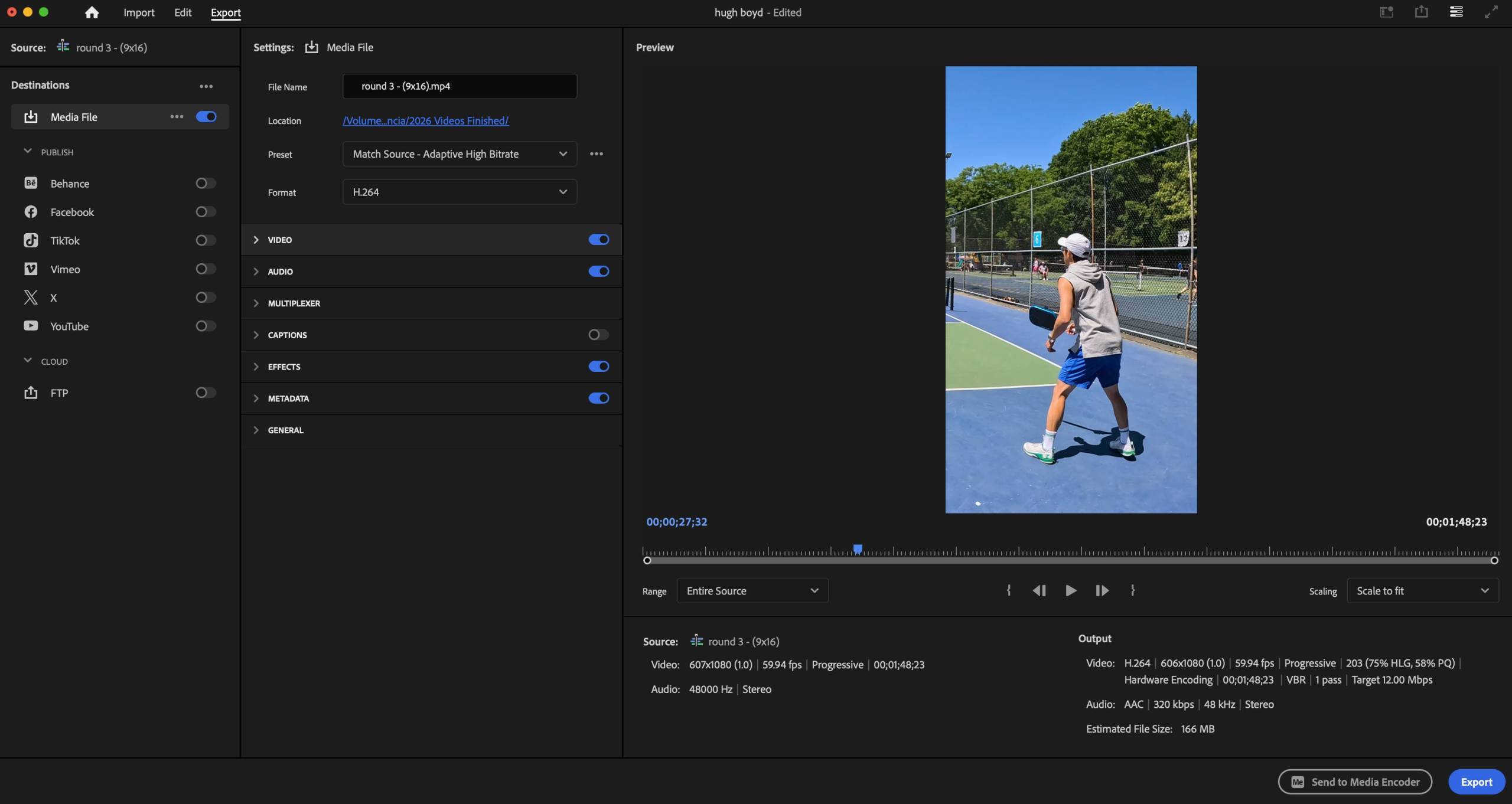
Here is a step-by-step guide to creating, optimizing, and ranking your IG Edits on Instagram Reels. IG edits is a free app on your phone on android or iphone that integrates well with instagram. In the example below I’ve edited my video into a vertical video already in premiere pro, but you can just use your phone footage. I then export the video and upload it to tik tok studio. From there I can download the video onto phone and put it into IG edits.
IG edits allows your to easily add production value to the edit video that show up in multiple tracks:
- You can do voiceovers ( You can even eliminate pauses)
- You can add commercial music
- You can adjust the volume and fade in and out
- You can add captions from your voiceover
- You can add text
- You can do an easy export to direct to Instagram as a reel.
Instagram has made a great mobile video editing app and you can learn to use all the features in my online course.
1. Optimize Your Video Setup for Instagram’s Algorithm
Before hitting export on your editing software (like After Effects, Premiere Pro, or CapCut), make sure your technical settings align with Instagram’s preferences:
Aspect Ratio: Strictly 9:16 ($1080 \times 1920$ pixels). Instagram penalizes videos that have borders or are cropped awkwardly from horizontal formats.
Keep it Under 60 Seconds: While Reels can be longer, the highest-performing edits are usually 15 to 30 seconds long. This maximizes your loop rate and completion rate—two massive ranking signals for the algorithm.
High-Quality Export: Ensure your export settings are crisp (1080p, 30 or 60 fps, with a high bitrate). Go to your Instagram settings $\rightarrow$ Media Quality $\rightarrow$ toggle on Upload at Highest Quality.
2. Structure Your Edit for Maximum Retention
The Instagram algorithm heavily favors watch time. Craft your edit to hook viewers instantly:
The 2-Second Hook: Don’t start with a slow build-up. Start with a flashing transition, a dramatic sync, or a highly recognizable character/scene to stop the scroll.
Audio Syncing: Edits live and die by audio. Sync your transitions, velocity shifts, and effects perfectly to the beats or bass drops of a trending audio track.
3. Master Instagram Reels SEO (Search Engine Optimization)
Instagram acts just like a search engine. To ensure your edits show up when users search for their favorite shows, artists, or aesthetics, implement these key SEO strategies:
A. Write a Keyword-Rich Caption
Don’t just leave a blank caption or a single emoji. Use descriptive keywords that your target audience actually types into the search bar.
Example Caption Structure:
Hook: “Rate this [Character/Topic] edit from 1-10! 🔥”
Context: “Bringing you the ultimate smooth velocity edit for [Show/Movie Name]. I used [Software Name] for the color grading and transitions on this one.”
Call to Action (CTA): “Save this reel for editing inspiration and follow for more daily edits!”
B. Use Strategic Keywords & Hashtags
Incorporate a mix of broad and hyper-focused hashtags at the bottom of your caption.
Broad Niche Keywords:
#igedits #videoediting #aftereffects #velocityedit #reelseditsHyper-Specific Keywords:
#animeedit #demonslayeredit #zenitsuedit(tailor this to your specific edit).
C. Utilize the “Topics” Feature
Before publishing your Reel, scroll down to Add Topics. Select up to three highly relevant categories under the visual arts or entertainment umbrellas (e.g., Visual Arts, Gaming, or Movies & TV) to help Instagram categorize your content accurately.
D. Add Alt Text
Give the algorithm explicit text data to read. Go to Advanced Settings $\rightarrow$ Write Alt Text, and describe your video cleanly: “A smooth, high-quality 4K velocity edit of [Character Name] from [Show Name] with dark cinematic color grading.”
4. Repurposing Trending Audios
Instead of just uploading your custom audio track mixed with your edit, use Instagram’s native audio tools to ride the algorithmic wave:
Find a trending audio on Instagram (look for the upward-trending arrow next to the audio name).
Save it and apply it to your Reel.
Turn the volume of the Trending Audio down to 1 or 0 and turn your Camera Audio (your custom edited track) up to 100. This anchors your video to a trending page while keeping your custom audio intact!
5. Blueprint for Sports Niches: Pickleball & Golf Edits
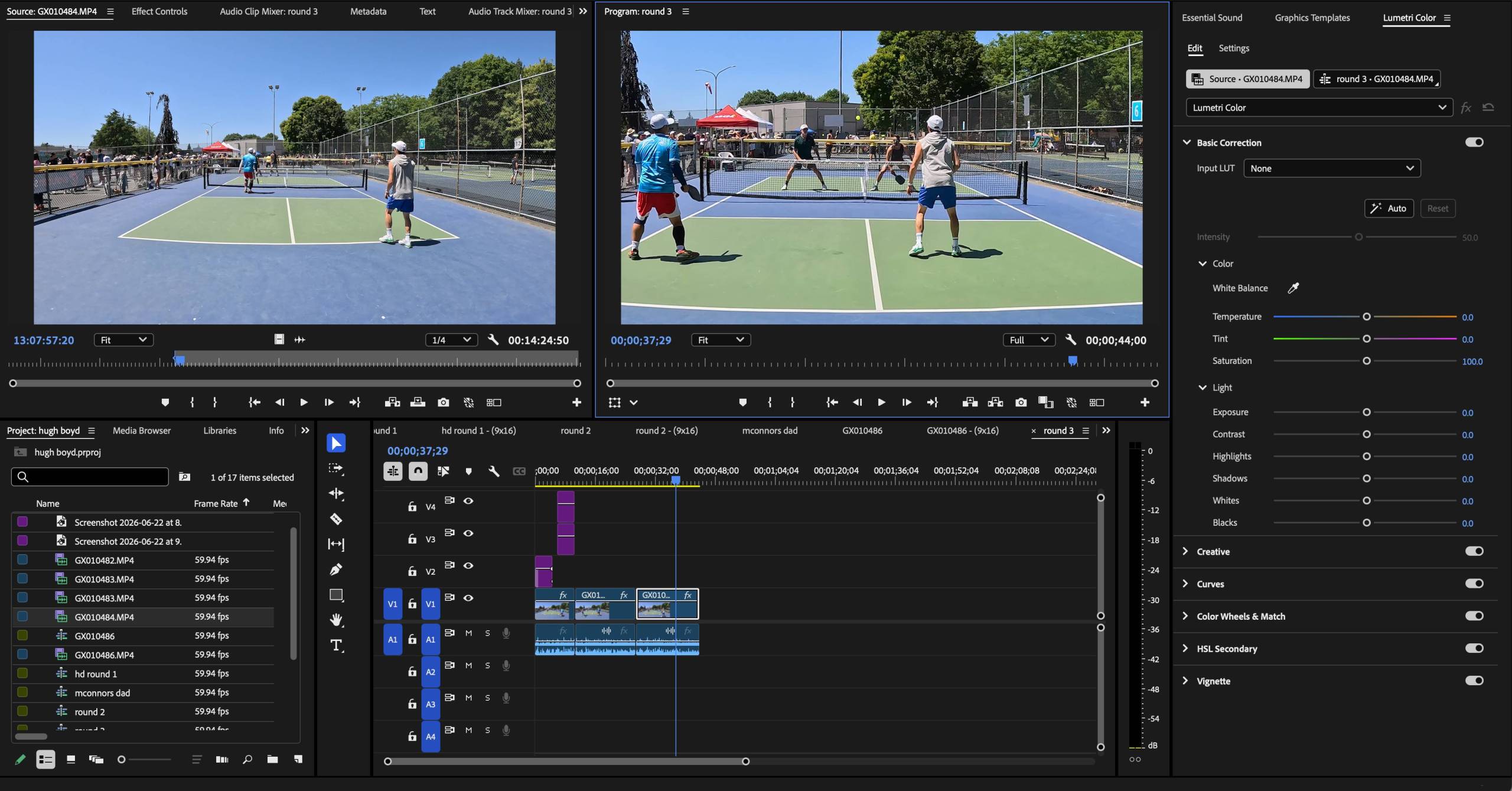
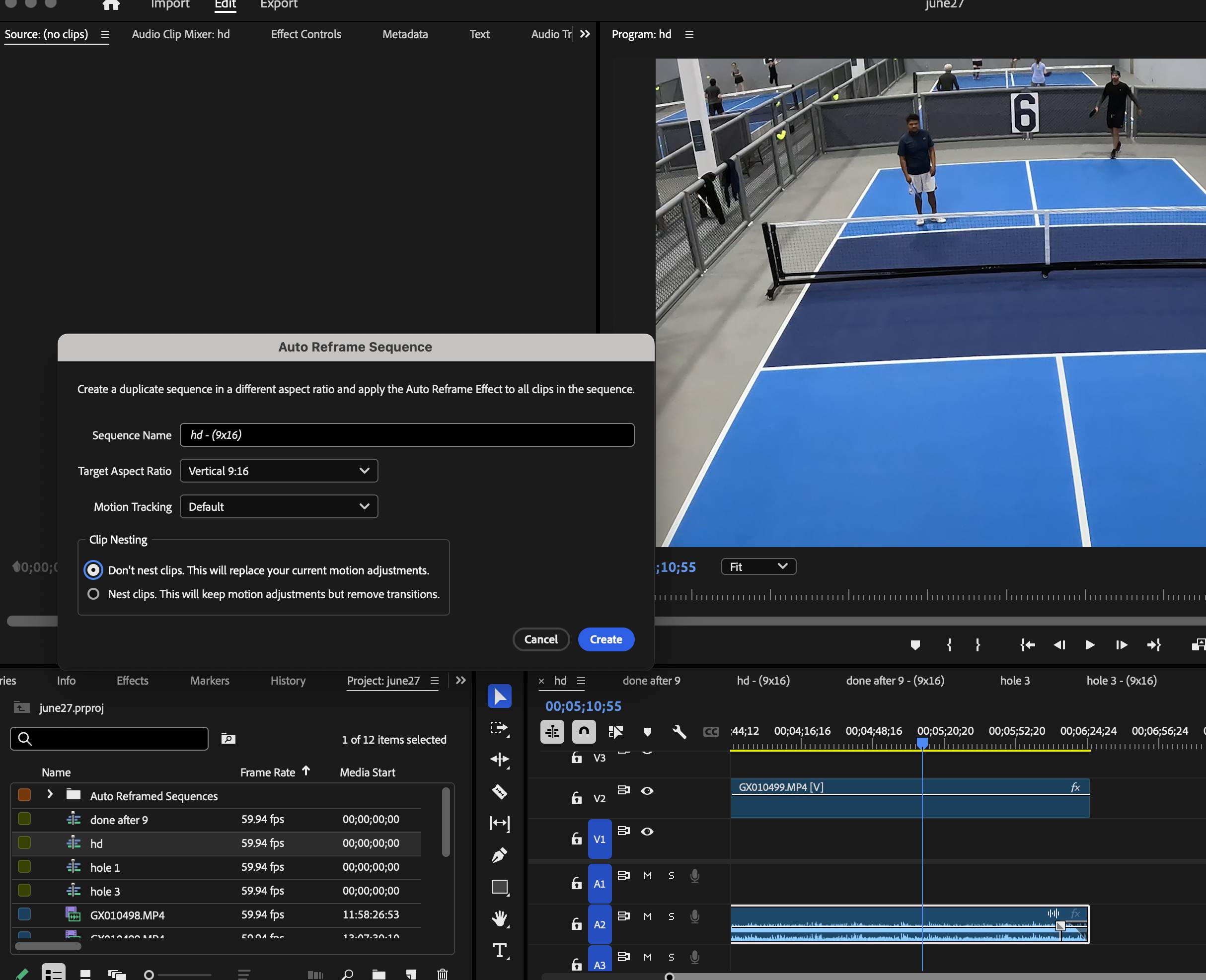
The sports community on Instagram thrives on dynamic movement, satisfying audio, and relatable lifestyle content. If your edits focus on pickleball or golf, you have a massive advantage: both sports have highly passionate, fast-growing audiences looking for both aesthetic visual content and practical tips. I like to edit my pickleball and golf videos on the traditional 16:9 format first and then using Adobe Premiere’s Auto reframe feature to convert the video into a vertical video with captions. Premiere will also using AI motion tracking to attempt to follow the action giving the camera some movement. I like to film in 4K resolution to give you some flexibility to overwrite the motion tracking to move the camera position to where you like.
The Pickleball Edit Strategy
Pickleball is fast-paced, which makes it perfect for high-energy velocity edits.
The “Satisfying Sound” Edit: Capitalize on the crisp “pop” of a perfect sweet-spot paddle strike. Sync your video transitions directly to the rhythm of the ball hitting the paddle, blending it into a trending heavy-bass track.
Handspeed & Reset Edits: Create dramatic slow-motion to fast-motion transitions during intense kitchen battles. Zoom in slightly on the paddle face to show the control and spin during a perfect third-shot drop or a quick hand battle.
Target Keywords: Use terms like
pickleball transitions,dupr singles play,pickleball hand speed, andsatisfying pickleball soundin your captions to attract competitive players.
The Cinematic Golf Edit Strategy
Golf content scales incredibly well when you lean into high production value, smooth movement, and clean aesthetics.
Drone Aerial & Ball Tracking Edits: Use smooth drone transitions tracing the flight of the ball from the tee box down the fairway. Pair long, sweeping aerial shots with a clean color grade and a lo-fi or dramatic cinematic audio track.
The Perfect Swing Sync: Crop your footage into a tight 9:16 frame focusing on the golfer’s form. Sync the exact moment of impact (the “crunch” of a clean iron shot) with the bass drop of your audio. Use a slight digital zoom or screen shake effect on impact to maximize the visual punch.
Target Keywords: Optimize with search phrases like
cinematic golf drone,golf swing velocity edit,satisfying golf audio, andclean golf aesthetic.
6. Ready-to-Use Keyword & Hashtag Kits
To help the Rank Math plugin recognize your content relevancy, copy and paste these curated, search-friendly hashtag blocks based on what you are posting:
For Pickleball Reels:
SEO Hashtags:
#pickleball #pickleballedits #pickleballreels #singlespickleball #dupr #pickleballislife #sportsedits #velocityedit #aftereffects #sportscreators
For Golf Reels:
SEO Hashtags:
#golf #golfedits #golfdrone #cinematicgolf #golfswing #satisfyinggolf #golfreels #droneaerials #filmmaking #videoediting #goprofieldofview